Billboarding Shader in Godot
An easy way to make a quad face your camera
Here’s a trick for adding billboarding to a custom shader in Godot, let Godot generate the code for you!
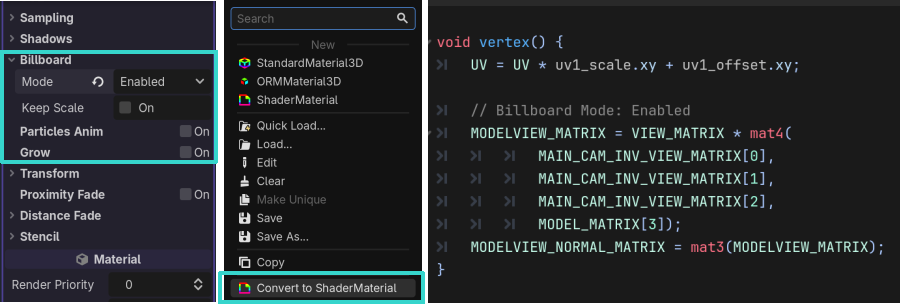
- Set up a StandardMaterial3D with the type of billboarding you want.
- Right click the StandardMaterial3D in the Inspector and press Convert to ShaderMaterial.
- Open the generated shader and copy the billboarding part to your shader’s
vertex()function.
The code is different depending on the type of billboarding you use, and if you preserve scaling. I’ve broken down the code a bit to make it easier to understand:
// Construct model matrix.
mat4 model_matrix = mat4(
MAIN_CAM_INV_VIEW_MATRIX[0],
MAIN_CAM_INV_VIEW_MATRIX[1],
MAIN_CAM_INV_VIEW_MATRIX[2],
MODEL_MATRIX[3]);

// Transform into view space.
MODELVIEW_MATRIX = VIEW_MATRIX * model_matrix;

// Rotate normals.
MODELVIEW_NORMAL_MATRIX = mat3(MODELVIEW_MATRIX);
This is the standard billboarding. model_matrix takes its rotation from the camera’s world space rotation in MAIN_CAM_INV_VIEW_MATRIX[0 to 2], and its position from the object’s world space position in MODEL_MATRIX[3].
We need to define the MODELVIEW_MATRIX, which positions the vertices. We have the model matrix now, which is the “MODEL” part of “MODELVIEW”, and to get the “VIEW” part, we transform the model matrix into view space with the VIEW_MATRIX.
The normals are transformed with a separate matrix. To define that matrix, all we need to do is copy the 3x3 version of the MODELVIEW_MATRIX into MODELVIEW_NORMAL_MATRIX. If we don’t do this the object’s lighting won’t match the geometry.